In part 1 the azure-pipelines.yml was merged into the main branch via a Pull Request. In this second part we attach that YAML to a pipeline and run it on a Microsoft-hosted Windows agent in the cloud.
The Pipelines section
The Pipelines section in the sidebar contains more items than Repos:
- Pipelines — the CI pipelines (build)
- Environments — deployment targets such as acceptance and production
- Releases — the classic visual release pipelines (older system, being replaced by multi-stage YAML)
- Library — variable groups and secure files
- Task groups — reusable task blocks that can be shared across multiple pipelines
- Deployment groups — self-hosted agents grouped per environment
On a new project the Pipelines list is empty.
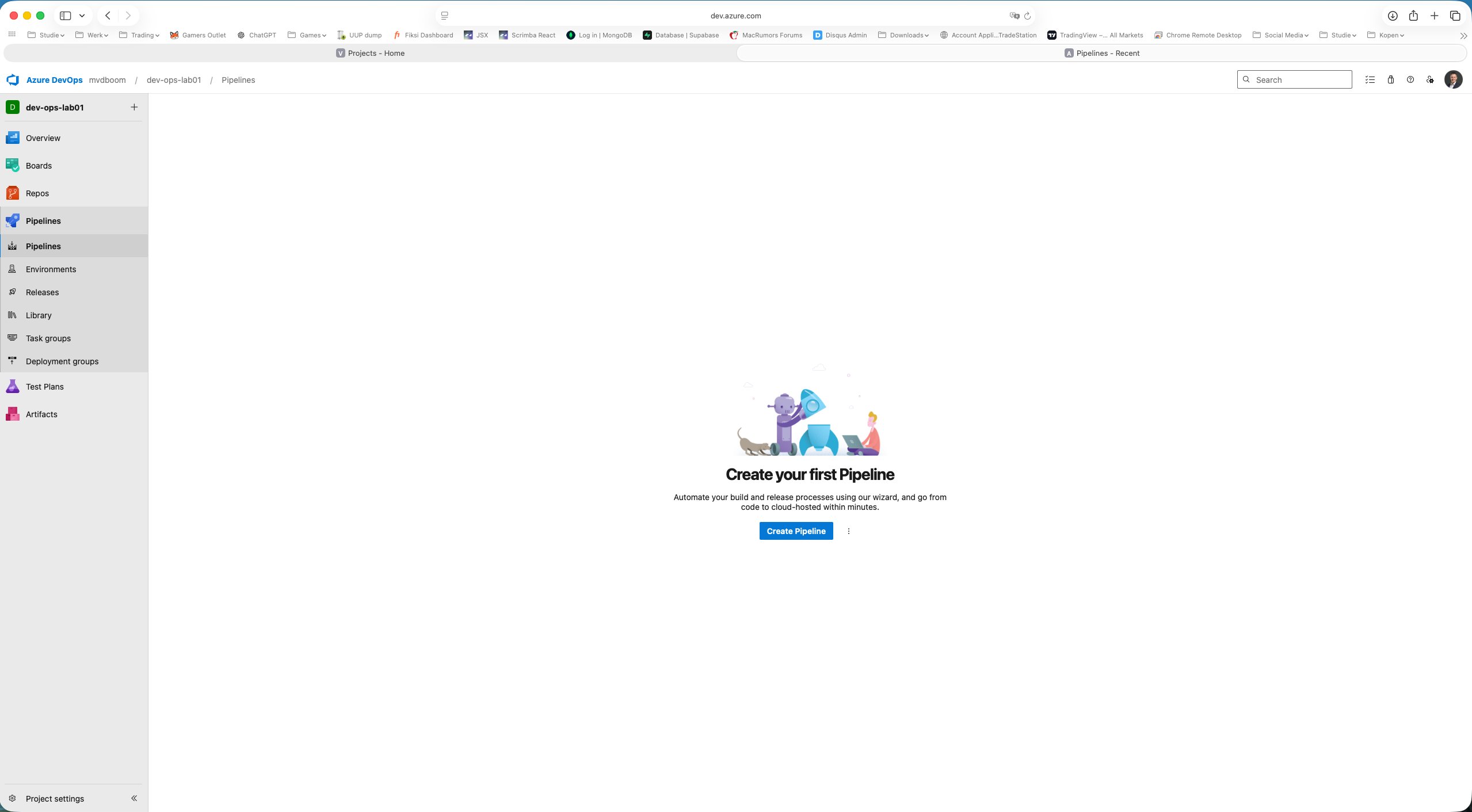
Creating a pipeline: the wizard
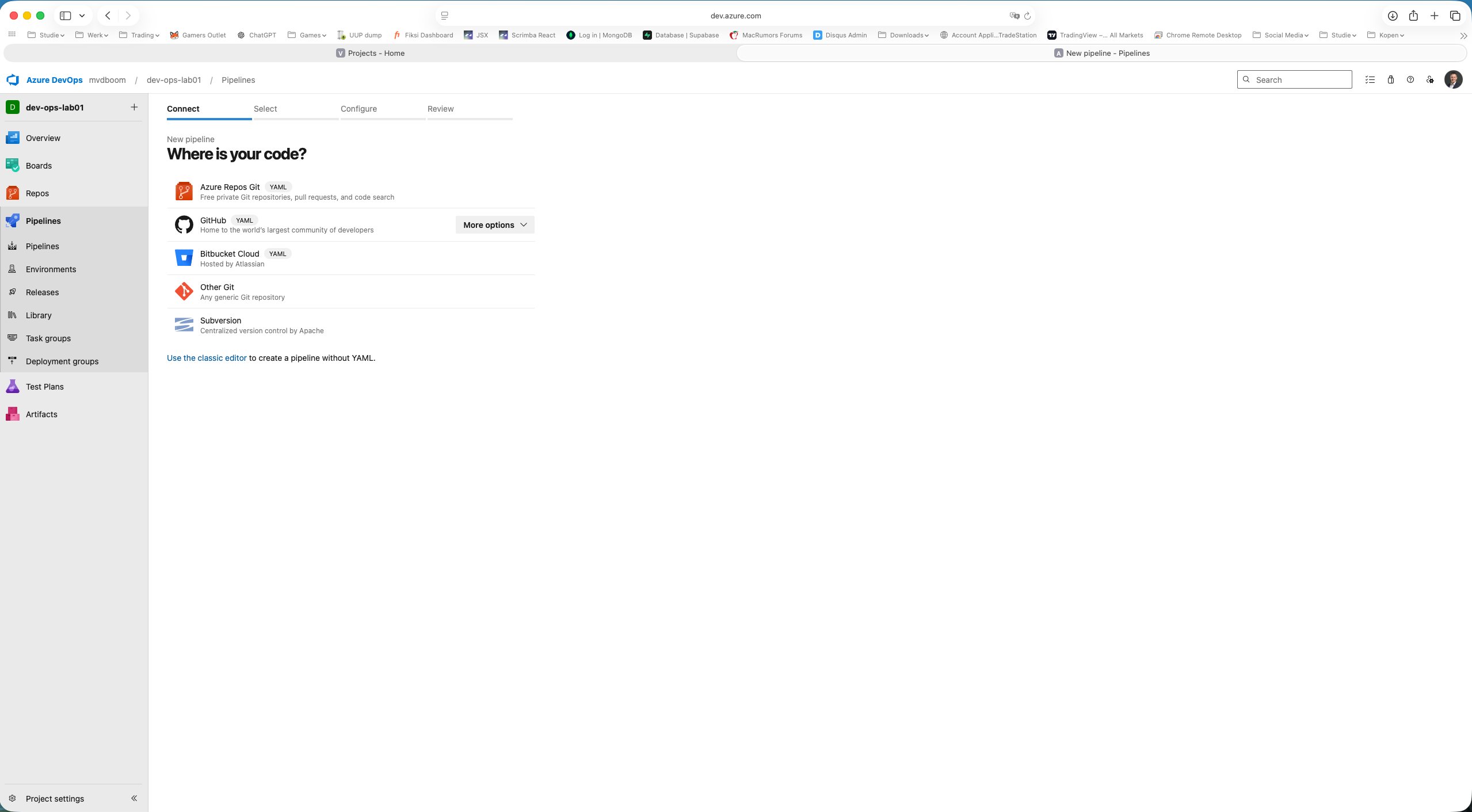
Via Create Pipeline the four-step wizard starts: Connect → Select → Configure → Review.
Step 1 — Connect: where is the code? ADO supports Azure Repos Git, GitHub, Bitbucket Cloud, other Git servers and Subversion. At the bottom there is also a link to the classic editor — the old visual pipeline builder without YAML. This is no longer actively developed.
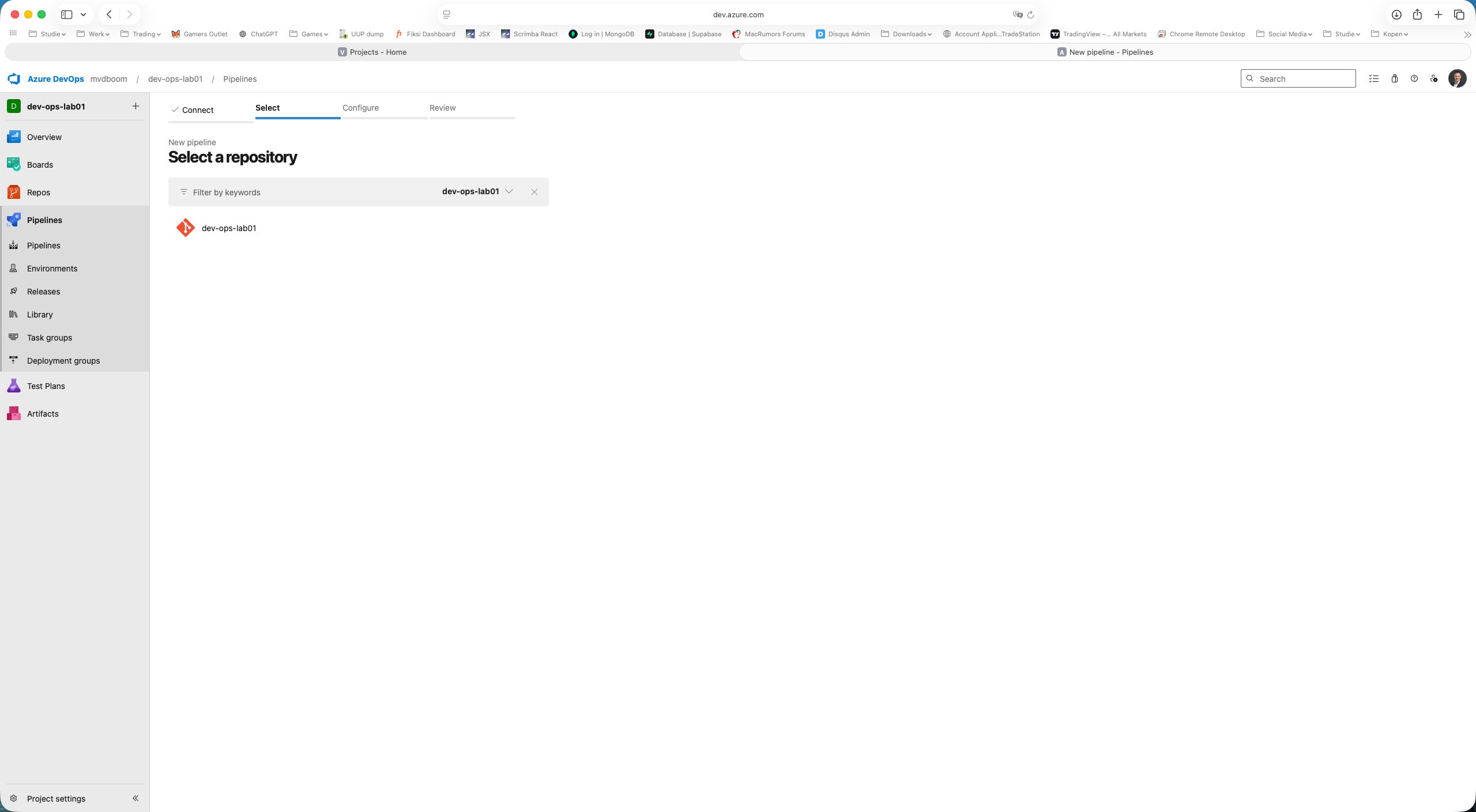
Step 2 — Select: which repository? Since there is only one repo in the project, dev-ops-lab01 is the only option.
Step 3 — Configure is automatically skipped. ADO detects that an azure-pipelines.yml already exists in the root of the repo and jumps straight to Review.
Step 4 — Review: the existing YAML is shown. ADO reads the file directly from the repo — nothing is copied or stored separately. The pipeline is the YAML in the repo.
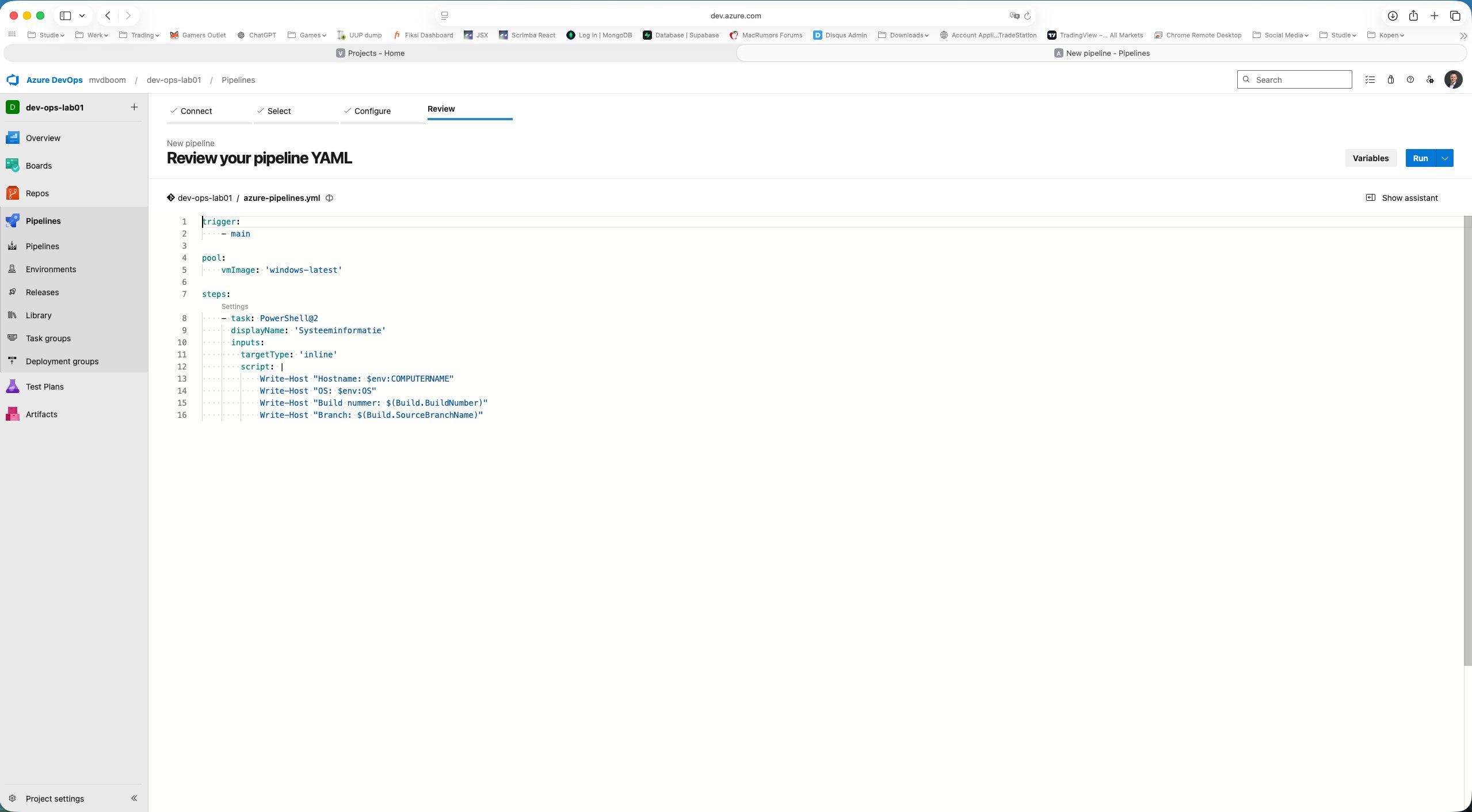
The YAML created in part 1:
 1trigger:
 2  - main
 3
 4pool:
 5  vmImage: 'windows-latest'
 6
 7steps:
 8  - task: PowerShell@2
 9    displayName: 'System information'
10    inputs:
11      targetType: 'inline'
12      script: |
13        Write-Host "Hostname: $env:COMPUTERNAME"
14        Write-Host "OS: $env:OS"
15        Write-Host "Build number: $(Build.BuildNumber)"
16        Write-Host "Branch: $(Build.SourceBranchName)"
The key components:
| Keyword | Meaning |
|---|---|
trigger | A push to main starts the pipeline automatically |
pool.vmImage | Microsoft-hosted agent — windows-latest is the most recent Windows Server image |
steps | The list of steps to execute |
task: PowerShell@2 | A built-in ADO task, version 2 |
$(Build.BuildNumber) | Built-in ADO variable, automatically populated |
$(Build.SourceBranchName) | Built-in ADO variable with the branch name |
Via Run the pipeline is started for the first time.
The first run
After starting, ADO shows the run summary. The pipeline completed successfully.
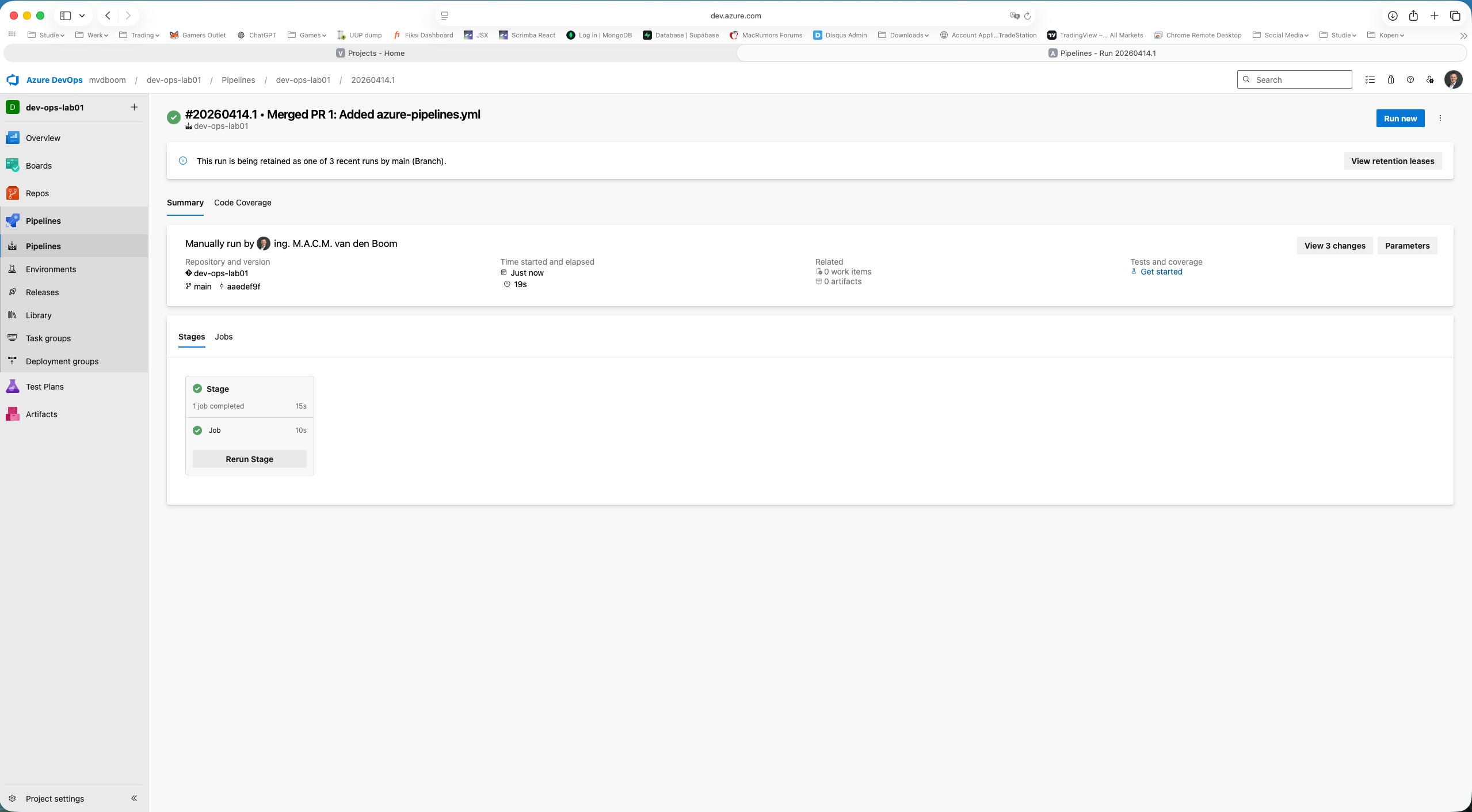
What is visible:
- #20260414.1 — build number, constructed from date and sequence number
- Merged PR 1: Added azure-pipelines.yml — the commit this ran against
- branch
main, commitaaedef9f— the exact merge commit from the PR in part 1 - Stage: 1 job completed in 15s — total execution time including agent provisioning
The job log
Clicking Job opens the detailed log view. The left sidebar shows all the steps ADO automatically executes around the custom YAML steps:
- Initialize job — agent is configured
- Checkout dev-ops-lab01@main — the repo is cloned on the agent
- System information — the custom PowerShell task
- Post-job: Checkout — cleanup after checkout
- Finalize Job — agent signs off
- Report build status — status is reported back to the repo
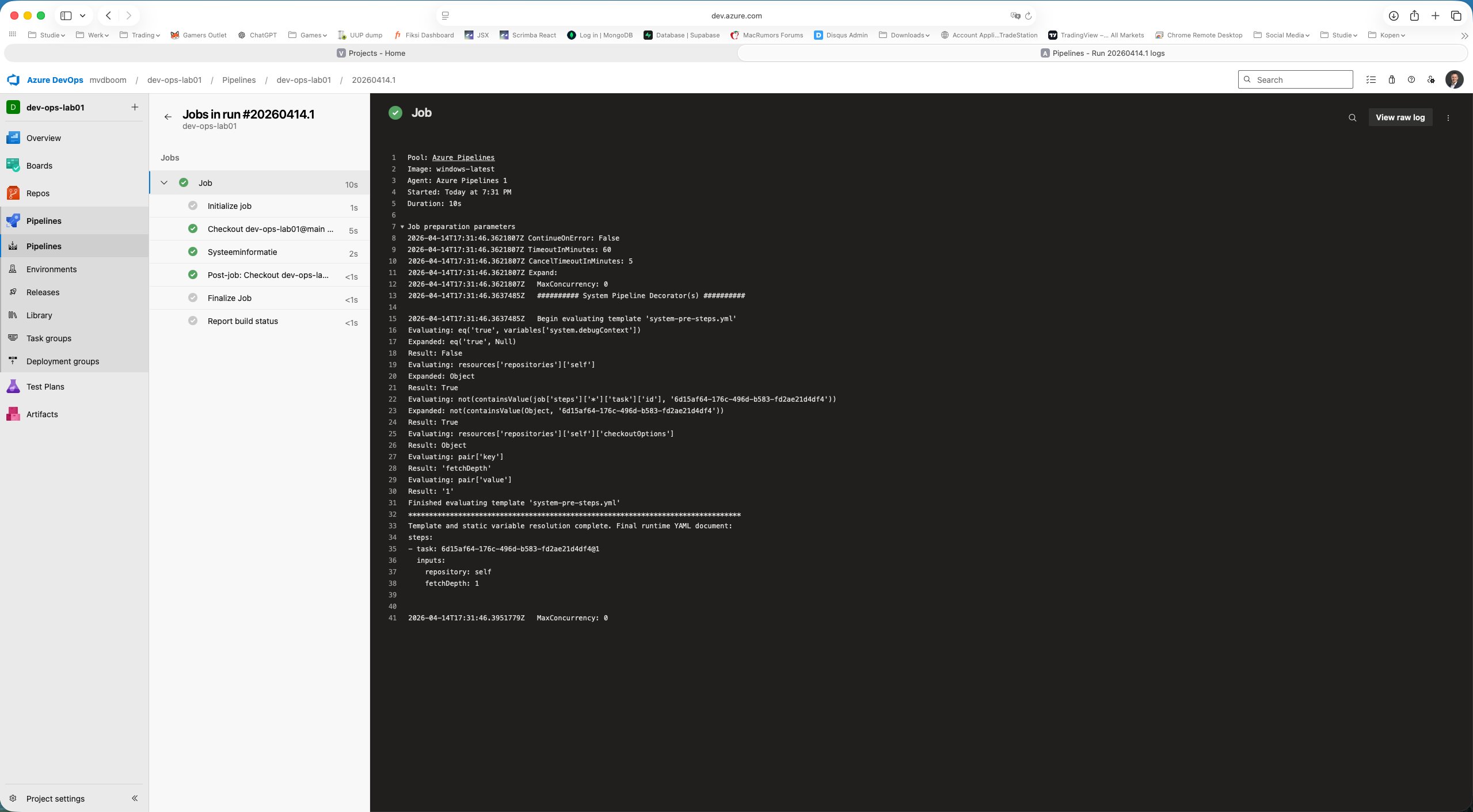
The main log shows the agent metadata: Pool: Azure Pipelines, Image: windows-latest, Agent: Azure Pipelines 1. This is a disposable VM in a Microsoft data centre that was provisioned on demand for this job and destroyed after completion.
PowerShell output
The output of the System information step:
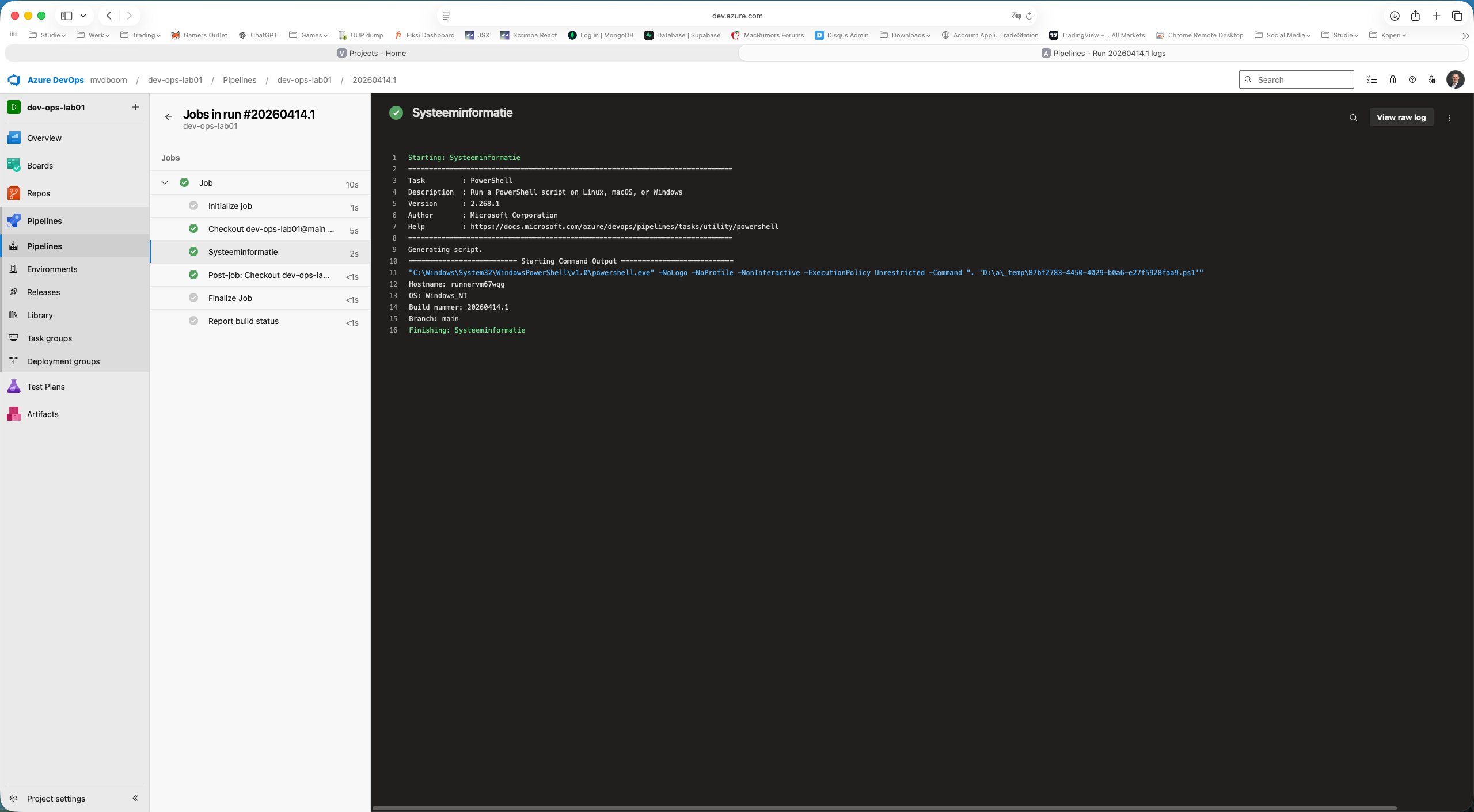
1Hostname: runnervm67wqg
2OS: Windows_NT
3Build number: 20260414.1
4Branch: main
The agent is named runnervm67wqg — a randomly assigned Microsoft-hosted Windows VM. The ADO variables $(Build.BuildNumber) and $(Build.SourceBranchName) were automatically populated by the platform with the correct values.
What has been achieved
After this second part it is clear how a YAML pipeline works in Azure DevOps:
- The pipeline wizard links a YAML file in the repo to a pipeline definition
- ADO automatically detects an existing
azure-pipelines.yml - A Microsoft-hosted agent is provisioned on demand, executes the job and is discarded afterwards
- Built-in ADO variables are available in every step without any configuration
- The job log shows all steps including the automatic steps added by ADO itself
In part 3 we will extend the pipeline with stages and jobs — the building blocks for real CI/CD pipelines with multiple environments.

Comments